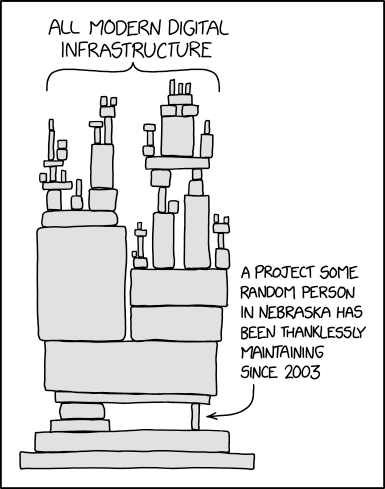
So today I finished a year long project that has had a long long string of timing conflicts (sickness, death, end-of-quarter freezes, zombie outbreak, police riot, and alien invasion I believe).
While the Fedora Project has many packages that end up time to time in Red Hat Enterprise Linux... not every package does. And this is where Extra Packages for Enterprise Linux (EPEL) comes in. For many years the main mailing list (epel-devel-list@redhat.com) was housed over on the redhat.com servers (Thank you very much Red Hat), but other mailing lists (epel-releng, epel-announce, and now epel-users) were at lists.fedoraproject.org. Today we were able to move the list over and get it renamed to (epel-devel@lists.fedoraproject.org). The old list address still works for a transition period but all email is archived and shown at lists.fedoraproject.org.
And now I return you to your regularly scheduled programming.
2013-05-09
2013-05-08
Fedora 19 Beta TC3: Installing remotely to Dell R520.(whiney version)
So long story short.. this is a post to cover my last 3 days of sitting beating my head against a wall while trying to install some servers for the Fedora Kernel team.
The problem I was faced with is quite common for the remote system administrator.. installing bare metal in a remote location. In this case some new Dell servers we got for the Fedora kernel people to test their kernels on. Usually we can do this with a combination of internal hardware management system, pxe boot, kickstart and vnc.. however in our case we are working with brand new hardware which may only have kernel support in the latest kernels. The second problem is that due to some initial miscommunication, the internal iDrac management system wasn't bought with any management ability so I have to use an APC KeyboardVideoMouse (KVM).
This unit is on loan for evaluation so I ended up testing various parts as I was going through this. The first problem in the evaluation is that the tool only wants to work with 32 bit Official Java. I spent a day and half first trying to get OpenJDK 64 bit to work and then in trying to get 32bit Java to work on my 64 bit environment. After a lot of weird browser bugs with different browsers.. I decided it was time to look at plan B, install an OS (RHEL-6) which came with a known working java for the toolkit. Since I didn't want to reinstall my laptop, I opted to put the RHEL-6 as a virtual machine using my laptops kernel virtual machine (kvm) system. [I have decided to uppercase some KVM and lowercase other kvm because I am confused after the second or third mention while writing this piece]
The RHEL-6 install was pretty fast and quick, and I installed Oracle JDK via the alternatives channel. Fired up firefox, and low and behold when I logged into the APC KVM I was able to get the remote console to work and was able to get into the system. This is where I ran into our second problem. Most of our hardware is installed with Red Hat Enterprise Linux 6, so I was going to do an install with that. However, it quickly became obvious that the Dell R520's came with a newer network card than what the RHEL-6.4 images I had knew about. I started to look for vendor drivers and such but it turned out that the Fedora kernel developers wanted to play with Fedora 19.
After setting up a Fedora 19 in our PXE boot environment (I will detail that in a different post), I was able to get the system working before running into the next issue with the APC KVM. That is that its video codes as interpreted by Linux makes the screen miss the top and left side of the screen. Trying all the different controls to resize the screen didn't help and while I could "move" the screen in some of the controls to the left, after 30 seconds it would resync back to its original lossy stage.
I was going to look for modeset controls and such, but knew that would cause the ghost of Ajax to visit my tent with the "Modeset on the kernel line is WRONG.", so instead I went to how one should install remotely.. the anaconda vnc installer. Adding "vnc vncpassword=myeleetpassword" to the "/tftpboot/pxelinux.cfg/default" file allows the installer to start up vnc and allows for to get to the system on the 5901 port using tigervnc.
Finally I was able to get some of the installer working, but it would fail at looking up the http ports for packages and such. This turned out to because the boot line syntax for ip addresses has changed since Fedora 17 due to some dracut handling. I spent another half hour trying to get the system to come up like the dracut webpages at https://fedoraproject.org/wiki/Dracut/Options#Network show but found only a lot of errors. Instead I ended up mixing and matching between new and old to get it to work. The new was to change out "dns=," to "nameserver= nameserver=" and the old was to keep the "ip= netmask= gateway=".
The Fedora 19 Beta TC3 install went well from there (I had one crash but it was not reproducible and not fileable so I am calling it a fluke until I get it again). The Dell R520 is a lot faster to reboot than the IBM xseries boxes we have.. and its management tool to upgrade BIOS etc is much much nicer. All the tools work well without a mouse which is good because the KVM and its mouse syncing is not as good as I hoped.
The problem I was faced with is quite common for the remote system administrator.. installing bare metal in a remote location. In this case some new Dell servers we got for the Fedora kernel people to test their kernels on. Usually we can do this with a combination of internal hardware management system, pxe boot, kickstart and vnc.. however in our case we are working with brand new hardware which may only have kernel support in the latest kernels. The second problem is that due to some initial miscommunication, the internal iDrac management system wasn't bought with any management ability so I have to use an APC KeyboardVideoMouse (KVM).
This unit is on loan for evaluation so I ended up testing various parts as I was going through this. The first problem in the evaluation is that the tool only wants to work with 32 bit Official Java. I spent a day and half first trying to get OpenJDK 64 bit to work and then in trying to get 32bit Java to work on my 64 bit environment. After a lot of weird browser bugs with different browsers.. I decided it was time to look at plan B, install an OS (RHEL-6) which came with a known working java for the toolkit. Since I didn't want to reinstall my laptop, I opted to put the RHEL-6 as a virtual machine using my laptops kernel virtual machine (kvm) system. [I have decided to uppercase some KVM and lowercase other kvm because I am confused after the second or third mention while writing this piece]
The RHEL-6 install was pretty fast and quick, and I installed Oracle JDK via the alternatives channel. Fired up firefox, and low and behold when I logged into the APC KVM I was able to get the remote console to work and was able to get into the system. This is where I ran into our second problem. Most of our hardware is installed with Red Hat Enterprise Linux 6, so I was going to do an install with that. However, it quickly became obvious that the Dell R520's came with a newer network card than what the RHEL-6.4 images I had knew about. I started to look for vendor drivers and such but it turned out that the Fedora kernel developers wanted to play with Fedora 19.
After setting up a Fedora 19 in our PXE boot environment (I will detail that in a different post), I was able to get the system working before running into the next issue with the APC KVM. That is that its video codes as interpreted by Linux makes the screen miss the top and left side of the screen. Trying all the different controls to resize the screen didn't help and while I could "move" the screen in some of the controls to the left, after 30 seconds it would resync back to its original lossy stage.
I was going to look for modeset controls and such, but knew that would cause the ghost of Ajax to visit my tent with the "Modeset on the kernel line is WRONG.", so instead I went to how one should install remotely.. the anaconda vnc installer. Adding "vnc vncpassword=myeleetpassword" to the "/tftpboot/pxelinux.cfg/default" file allows the installer to start up vnc and allows for to get to the system on the 5901 port using tigervnc.
Finally I was able to get some of the installer working, but it would fail at looking up the http ports for packages and such. This turned out to because the boot line syntax for ip addresses has changed since Fedora 17 due to some dracut handling. I spent another half hour trying to get the system to come up like the dracut webpages at https://fedoraproject.org/wiki/Dracut/Options#Network show but found only a lot of errors. Instead I ended up mixing and matching between new and old to get it to work. The new was to change out "dns=
The Fedora 19 Beta TC3 install went well from there (I had one crash but it was not reproducible and not fileable so I am calling it a fluke until I get it again). The Dell R520 is a lot faster to reboot than the IBM xseries boxes we have.. and its management tool to upgrade BIOS etc is much much nicer. All the tools work well without a mouse which is good because the KVM and its mouse syncing is not as good as I hoped.
2013-04-25
LVM and the things I forget when my allergies are bad.
I want to thank the following bloggers for helping me today when my brain completely forgot my lvm commands. I blame old age (400+ years is quite a bit of memory to hold around.)
but I figured I needed to make up a list for myself since I keep forgetting and having to go through the commands each time.
First make sure there is a partition. The disk isn't too large so we will use trusty old fdisk.
fdisk /dev/vdb
Device contains neither a valid DOS partition table, nor Sun, SGI or OSF disklabel
Building a new DOS disklabel with disk identifier 0x3842498f.
Changes will remain in memory only, until you decide to write them.
After that, of course, the previous content won't be recoverable.
Warning: invalid flag 0x0000 of partition table 4 will be corrected by w(rite)
WARNING: DOS-compatible mode is deprecated. It's strongly recommended to
switch off the mode (command 'c') and change display units to
sectors (command 'u').
Command (m for help): p
Disk /dev/vdb: 268.4 GB, 268435456000 bytes
16 heads, 63 sectors/track, 520126 cylinders
Units = cylinders of 1008 * 512 = 516096 bytes
Sector size (logical/physical): 512 bytes / 512 bytes
I/O size (minimum/optimal): 512 bytes / 512 bytes
Disk identifier: 0x3842498f
Device Boot Start End Blocks Id System
Command (m for help): n
Command action
e extended
p primary partition (1-4)
p
Partition number (1-4): 1
First cylinder (1-520126, default 1):
Using default value 1
Last cylinder, +cylinders or +size{K,M,G} (1-520126, default 520126):
Using default value 520126
Command (m for help): t
Selected partition 1
Hex code (type L to list codes): L
0 Empty 24 NEC DOS 81 Minix / old Lin bf Solaris
1 FAT12 39 Plan 9 82 Linux swap / So c1 DRDOS/sec (FAT-
2 XENIX root 3c PartitionMagic 83 Linux c4 DRDOS/sec (FAT-
3 XENIX usr 40 Venix 80286 84 OS/2 hidden C: c6 DRDOS/sec (FAT-
4 FAT16 <32M 41 PPC PReP Boot 85 Linux extended c7 Syrinx
5 Extended 42 SFS 86 NTFS volume set da Non-FS data
6 FAT16 4d QNX4.x 87 NTFS volume set db CP/M / CTOS / .
7 HPFS/NTFS 4e QNX4.x 2nd part 88 Linux plaintext de Dell Utility
8 AIX 4f QNX4.x 3rd part 8e Linux LVM df BootIt
9 AIX bootable 50 OnTrack DM 93 Amoeba e1 DOS access
a OS/2 Boot Manag 51 OnTrack DM6 Aux 94 Amoeba BBT e3 DOS R/O
b W95 FAT32 52 CP/M 9f BSD/OS e4 SpeedStor
c W95 FAT32 (LBA) 53 OnTrack DM6 Aux a0 IBM Thinkpad hi eb BeOS fs
e W95 FAT16 (LBA) 54 OnTrackDM6 a5 FreeBSD ee GPT
f W95 Ext'd (LBA) 55 EZ-Drive a6 OpenBSD ef EFI (FAT-12/16/
10 OPUS 56 Golden Bow a7 NeXTSTEP f0 Linux/PA-RISC b
11 Hidden FAT12 5c Priam Edisk a8 Darwin UFS f1 SpeedStor
12 Compaq diagnost 61 SpeedStor a9 NetBSD f4 SpeedStor
14 Hidden FAT16 <3 63 GNU HURD or Sys ab Darwin boot f2 DOS secondary
16 Hidden FAT16 64 Novell Netware af HFS / HFS+ fb VMware VMFS
17 Hidden HPFS/NTF 65 Novell Netware b7 BSDI fs fc VMware VMKCORE
18 AST SmartSleep 70 DiskSecure Mult b8 BSDI swap fd Linux raid auto
1b Hidden W95 FAT3 75 PC/IX bb Boot Wizard hid fe LANstep
1c Hidden W95 FAT3 80 Old Minix be Solaris boot ff BBT
1e Hidden W95 FAT1
Hex code (type L to list codes): 8e
Changed system type of partition 1 to 8e (Linux LVM)
Command (m for help): w
The partition table has been altered!
Calling ioctl() to re-read partition table.
Syncing disks.
Now we need to make the LVM commands.
# pvcreate /dev/vdb1 # vgcreate VolGroup01 /dev/vdb1 # pvdisplay --- Physical volume --- PV Name /dev/vdb1 VG Name VolGroup01 PV Size 250.00 GiB / not usable 3.48 MiB Allocatable yes PE Size 4.00 MiB Total PE 63999 Free PE 63999 Allocated PE 0 PV UUID LPL7af-88jE-vJce-JX2A-7zc9-icl9-4DEaQd # lvcreate -n collabStore -L 200G VolGroup01 # mkfs.ext4 /dev/VolGroup01/collabStore mke2fs 1.41.12 (17-May-2010) Filesystem label= OS type: Linux Block size=4096 (log=2) Fragment size=4096 (log=2) Stride=0 blocks, Stripe width=0 blocks 13107200 inodes, 52428800 blocks 2621440 blocks (5.00%) reserved for the super user First data block=0 Maximum filesystem blocks=4294967296 1600 block groups 32768 blocks per group, 32768 fragments per group 8192 inodes per group Superblock backups stored on blocks: 32768, 98304, 163840, 229376, 294912, 819200, 884736, 1605632, 2654208, 4096000, 7962624, 11239424, 20480000, 23887872 Writing inode tables: done Creating journal (32768 blocks): done Writing superblocks and filesystem accounting information: done This filesystem will be automatically checked every 21 mounts or 180 days, whichever comes first. Use tune2fs -c or -i to override.Edit /etc/fstab and we are done.
2013-04-19
Fedora Alpha 19: Important. Must Read. Etc Etc.
While I am working through RC4 to get to the post install parts there is an important question that keeps coming up in the many mailing lists:
Question: Why is Fedora 19 Alpha so slow and memory hogging?!?! [There are various versions of this mostly from people who tried to install it on some system that runs Fedora 18 well.]
Answer: Alphas for Fedora have many debug switches turned on that are not turned on for Beta or Final releases. These flags use more memory, more cpu cycles, and are generally performance degrading. However they allow for the best place to find bugs and give developers the most information on what is actually the cause and reason for that bug. Without them in place bug finding tends towards:
Question: Why is Fedora 19 Alpha so slow and memory hogging?!?! [There are various versions of this mostly from people who tried to install it on some system that runs Fedora 18 well.]
Answer: Alphas for Fedora have many debug switches turned on that are not turned on for Beta or Final releases. These flags use more memory, more cpu cycles, and are generally performance degrading. However they allow for the best place to find bugs and give developers the most information on what is actually the cause and reason for that bug. Without them in place bug finding tends towards:
- User to developer: My app crashed.
- Developer to User: Ok what were you doing?
- User to developer: I don't know...
- Developer to user: Ok tell me when it crashes again and see what you were doing.
- User never sees that crash again.
- User2 to developer: My app crashed...
- Repeat infinitum.
- Developer to userN+1: Here try downloading and running this version I have with all the debug flags turned on. Its slow but maybe it will catch it.
- Repeat sometime.
- UserN+20: Oh I have a lovely crash dump.
Now tools like abrt can help with this by cutting down many of the steps you see above.. but in the end, many bugs require a special debug running on the users system to find out why some lock thought it was ok to let go of something it wasn't or why some code walked a variable out of memory when 99.9999% of the time it doesn't. However the usability cost of those flags in a system can be horrendous as seen by the many people who are willing to test, but weren't prepared that for some applications or usages.. it was going to be using molasses.
Currently for Fedora 19, the large user of memory is the kernel, and if you are not running into problems, you can disable this effect with a kernel boot time argument of
slub_debug=-
Edited to add: I pressed Post when I meant to save it. Other items that one should use for Alpha testing is 4x-8x recommended regular memory ( I would say that 2GB is a minimum usable and 4GB very workable on x86_64, 1GB/2GB for x86_32) and more CPU (2.5 Ghz Pentium IV class is "workable" but less than that is painful) and more patience :).
2013-04-09
Fedora 19 Testing: First grind is usually the toughest.
This blog is part of a series on installing Fedora 19 and testing its "parts". This section will be prettified with links to the other parts if I get a chance.
I am now ready to start installing a test install. Note that unless you have exactly the same hardware as I do, you will have slightly different steps to do.. but hopefully it should be clear enough what to do.
- My first step is to get into the hardware's BIOS. I find this is useful for making sure that the hardware is set up correctly. Getting into the BIOS can be an exercise in frustration with many reboots while you figure out which keystroke gets the BIOS working. For this laptop it was F2. [ other boxes I have seen use everything from the ESC key to Alt-F10.] Once you get into the BIOS you should see a screen something like this:
- Once into the BIOS I check to see what boot options are available. As seen in the next photo, this laptop has UEFI boot enabled and sees the SanDisk 16GB stick as a boot option.
- For the first round of installs, I moved the USB key from the third boot option to the first one. This UEFI does not seem to have any Secure Boot options that I could find. I am guessing that this hardware predates that standard. So it is time to save the current settings and move on.
- The system should now boot the USB key and I was presented with a text screen similar to the below. For my first attempt, I just allowed it to boot the normal selection. [If you have problems, it is good to try the second option which will check to make sure that your download was correctly written to the dvd or usb key.]
- As suspected this box's EFI doesn't understand secure boot. I am free of the great kernel conspiracy :). On the other hand, it is clear I use a Motorola Droid phone.
- After some other text, the system will flicker into a graphical Welcome screen. From here one can choose the language and keyboard structure. Normally I choose English (UK), but will use the default US for this install.
- The obvious Sausage Grinder warning. This is our last chance to back out... if we don't want to keep installing this pre-pre-Alpha.
- Being the brave souls, we are... the next screen presents us with a network setup screen. This is where I ran into my first crashing bug. In TC5, if I selected a wireless network and just blindly attach to a network, anaconda will crash due to a hostname problem. [Get used to this little pop-up. It is something you will run into a lot.]
- Since I was at a crashing bug, it is time to start working through the steps of figuring out what the bug is and how to deal with it. My first step was to search via google "site:bugzilla.redhat.com anaconda crash" and learned quickly that was way too much information to try. A better tactic was to log into the Freenode IRC servers and /join #fedora-qa. There I was able to explain the problem I was seeing, and ask if there was a workaround. This was a known bug, and the workaround will be to put a hostname other than the default localhost.localdomain.
- On the second time through the installer, I chose my favourite movie: Totoro. I recommend anything but your password. I was able to join the local wireless network and move to the next screen which is the general installer setup screen:
- In this screen there are multiple items to deal with. I start by correcting the timezone for the install. Clicking on Date and Time gives us a very very pretty screen where you can click around to find the International Timezone city nearest you. For me it is Denver, Colorado. Notice that the "Done" button is in the upper left hand corner. Remember that because 20 years of training kept me looking in the lower right :).
- Since the keyboard was the US one I use, I went next into Software Selection which brings up a screen with quite a few choices to select. I found it interesting that I can only choose larger selections.. I could not have KDE and GNOME set up for this install. I guess I will do this post install. I decide I want the full GNOME subselections just to see what that will entail.
- Next it is time to select where to install to. The disk selection screen shows both the internal disk drive and the USB sans key. Select the internal and go back to the Done button at the top-left. [I will repeat this because it was the point that needed the most muscle memory to beat.]
- Because the internal disk has stuff on it and is full, a pop-up shows up asking how to fix the conundrum of installing on 0 MB of free disk space.
- I decide to click on reclaim space as I am planning on just letting the OS do its thing for this initial install. As can be seen, I already have a bunch of Linux on the system. I click on the disk drive and tell it to delete all content. I also tell it that I want to encrypt my disk which brings up the password selection. I HIGHLY recommend doing this step. You never know when a laptop will walk, and there is a large underground market in selling disk drives from laptops to be "imaged" by gangs to look for passwords, credit card numbers, etc.
- Getting back to the main selection screen, we have no more Yellow markers and can click on Next.. which is in the lower right corner. I am guessing there is a design reason for this, but I don't know the theory for it. [This isn't a gripe. You have to experiment to find new things.]
- The next screen starts the install. The disk drive is repartitioned, and the packages are installed in precedence order. During this time, I have two yellow markers at the top saying I need to set the root user's password, and create a new user.
- Setting the root password is quick and easy. Just write the same phrase into both the top and the bottom. I select phrases from an XKCD Password Generator because they are strong and easy to remember.
- Creating the user is similar, but here we have a couple other items we can answer (do we want it to be an administrator,etc.) Currently for the early Alpha Test Candidate releases, I recommend skipping this section. There is a reoccurring bug where initial-setup requires you to create a user after first boot even if you set one up before hand.
- Here is where I encountered my next crashing bug. The laptop has EFI turned on so I could get the sandisk found but the Alpha TC5 kernel has a problem when it sees weird EFI settings in order to not brick the system like the Samsung laptops can be.
- The work-around for this laptop is to reboot, turn off EFI in the BIOS, and then get the laptop to boot not from the boot menu but from the Save and Quit menu (obvious isn't it.)
- Going through the install steps again, I get past the previous crashing bug and the system finishes installing. I hit reboot and finish this blog post off.
Fedora 19 Alpha Testing: What you need to make sausage.
This blog is part of a series on installing Fedora 19 and testing its "parts". This section will be prettified with links to the other parts if I get a chance.
Here are the ingredients to hardware testing a Fedora release in the Alpha and early Beta stages:
- Patience and being able to project patience. Release time is a frantic time for QA and developers, and people get cranky quickly. You will spend a lot of time waiting for answers or fixes, and you may need to explain the problem in detail multiple times, and multiple ways. [This usually happens with visual bugs where each person sees something slightly different due to fonts, monitors, graphics cards, etc.]
- You will need an email address that you can use to register to bugzilla and various mailing lists as needed. You can get an email address at mail.google.com, outlook.com, or mail.yahoo.com (or a dozen other ones.) The instructions for doing this is outside the scope of this tutorial.
- You will need a bugzilla.redhat.com account. If you do not have an account already, please go to https://bugzilla.redhat.com/createaccount.cgi to set up the account.
- You should have access to an irc client of some sort. Currently I am using the Linux version of xchat2 which came set up for the Freenode servers that Fedora and many other Free/Libre/Open Software groups use. I highly recommend registering a nick as outlined at http://www.wikihow.com/Register-a-User-Name-on-Freenode .
- You will need some sort of hardware to test with. I am going to use two different systems to start off with. The first system is an already installed Linux box to download and write the ISOs with. You can use Windows or MacOSX if you know what you are doing.. I don't so won't be.
In choosing hardware you need to make sure you have reasonably new hardware... I find that hardware over 5 years old is usually too old for day to day testing anymore. Not that the hardware may not be up to the task, but if you run into an issue that could be hardware related, it is probably never going to be fixed.For this round of testing I am going to be using an Asus A52F laptop from 2011. It contains- Pentium i5,
- Intel graphics,
- 4GB of memory,
- and an EFI boot menu with its BIOS.
- Backup media. I am going to be using a USB-2.0 500 GB USB drive, and will be backing up before I reinstall, and then restoring afterwords. I will document how to make backups with Fedora 19 when I get to that stage.
- Some installation media. In the long ago past, I used CD-roms and DVD-roms for this exclusively, but for this release I am using a 16GB San Disk which was on sale. This was useful for testing the early test candidates which had a bug that made them larger than the 4GB that a DVD can hold.
- You will need a test image. You can get these from a mirror of alt.fedoraproject.org (from http://mirrors.fedoraproject.org/publiclist/)
lftp http://alt.fedoraproject.org/ lftp alt.fedoraproject.org:/pub/alt> cd /pub/alt/stage lftp alt.fedoraproject.org:/pub/alt/stage> dir drwxr-xr-x -- .. drwxr-xr-x - 2013-03-21 04:15 19-Alpha-TC1 drwxr-xr-x - 2013-03-26 02:06 19-Alpha-TC2 drwxr-xr-x - 2013-03-29 04:08 19-Alpha-TC3 drwxr-xr-x - 2013-04-04 00:40 19-Alpha-TC4 drwxr-xr-x - 2013-04-05 03:41 19-Alpha-TC5 drwxr-xr-x - 2013-04-05 08:20 deltaisos drwxr-xr-x - 2012-02-02 12:29 ec2 drwxr-xr-x - 2013-01-28 20:48 rawhide-20130128 drwxr-xr-x - 2013-03-01 18:45 rawhide-20130301 lftp alt.fedoraproject.org:/pub/alt/stage> cd 19-Alpha-TC5/Fedora/x86_64/iso/ lftp alt.fedoraproject.org:/pub/alt/stage/19-Alpha-TC5/Fedora/x86_64/iso> dir drwxr-xr-x -- .. -rw-r--r-- 260 2013-04-05 05:24 Fedora-19-Alpha-TC5-x86_64-CHECKSUM -rw-r--r-- 4.7G 2013-04-05 05:23 Fedora-19-Alpha-TC5-x86_64-DVD.iso -rw-r--r-- 312M 2013-04-05 05:15 Fedora-19-Alpha-TC5-x86_64-netinst.iso lftp alt.fedoraproject.org:/pub/alt/stage/19-Alpha-TC5/Fedora/x86_64/iso> mget Fedora-19-Alpha-TC5-x86_64-DVD.iso
- If the ISO is below 4.2 GB in size, you should be able to cut it to a DVD. In this case though the DVD install is larger than that so it will need to be cut directly to a USB key or booted via PXE or some other method. In this case we will be using a USB key. On the system you downloaded the ISO, we will use the dd command to write to the key.
On a USB-2 key, you are going to have a peak write of 15MB/s.. more likely 4 to 8MB/s since the bus is shared between USB devices. Be prepared to wait 5 to 10 minutes for it to finish writing. In a different terminal read the dd man page so you can see how to "track" how much is written if you want.$ sudo -i Password: @$@$#@$##@ # lsusb # find out what the USB is # dd if=/dev/zero of=/dev/sdb bs=1024 count=100 # voudou. I do this because it is needed on some keys. # dd if=/home/smooge/Downloads/Fedora-19-Alpha-TC5-x86_64-DVD.iso of=/dev/sdb bs=1024
Fedora 19 Alpha Testing. Welcome to the Sausage Grinder.
Fedora 19 is working through its build cycles with a release scheduled for early Summer of 2014. The current stage of testing is "Pre-Alpha" where QA and Release Engineering are working on getting a release for alpha testing. While Alpha is known to be the most rabid of candidates, it is also the most critical to test on the theory that the sooner bugs are located, the sooner they may be fixed (or worked around).
In order to help this out, I am going to sacrifice my laptop for the cause and put it through various installs as they are released. I am also going to try and log everything so that future readers can follow along if you want to.
WARNING: Due to the nature of the test candidate releases I am using for these first blogs.. expect a lot of crashes and missing features. Also because these are throw away releases, I am going to use old school testing methods.. pictures of screens are taken by hand camera and will have all kinds of crappy artefacts in them. My wording also won't be Documentation Level standards.. but more like my usual crappy English.
In the end, I hope these turn out to be useful anyway.
In order to help this out, I am going to sacrifice my laptop for the cause and put it through various installs as they are released. I am also going to try and log everything so that future readers can follow along if you want to.
WARNING: Due to the nature of the test candidate releases I am using for these first blogs.. expect a lot of crashes and missing features. Also because these are throw away releases, I am going to use old school testing methods.. pictures of screens are taken by hand camera and will have all kinds of crappy artefacts in them. My wording also won't be Documentation Level standards.. but more like my usual crappy English.
In the end, I hope these turn out to be useful anyway.
Subscribe to:
Posts (Atom)